.jpg?width=100&height=75&name=NextPax%20logo%20(3).jpg)
This guide covers what's specific to Vrbo when you onboard it through NextPax. It assumes you already understand how the onboarding wizard works in general — see the Generic partner guide first.
Good to know about the Vrbo connection:
- Partner Setup happens on Vrbo's side. NextPax registers your details with Vrbo, then opens Vrbo's own partner page where you sign up (new account) or log in and confirm the switch (existing account) — see §3.
- Your main contact email matters. Vrbo matches your account to our registration by the email you use on their page — it must be the main contact email from Account Setup. See §3.2.
- Vrbo has regional sites — United States, France (Abritel), United Kingdom, Italy, Portugal, Spain, Germany (FeWo-direkt), Australia, New Zealand, Japan. You pick your region in the step.
- Partner Setup does not block onboarding. While Vrbo's confirmation is pending you can continue with the next steps.
- Cancellation policies are a fixed Vrbo catalogue (Relaxed / Moderate / Firm / Strict / No Refund, plus Custom) — see §5.
- Promotions are optional — the Promotions step offers Vrbo's promotion types; configure them or skip and add them later. See §6.
2. How onboarding works
No channel-specific behavior — see the Generic partner guide §2.
3. Partner Setup
The step is titled "Vrbo partner setup". It first asks:
Before you continue, we need to understand whether you already have an active contract or partner setup with Vrbo. This determines the next steps of your onboarding.
with two options:
- I already have an active contract or partner setup with Vrbo
- I need a new contract or partner setup with Vrbo
Your choice is saved immediately — there is no Confirm button.
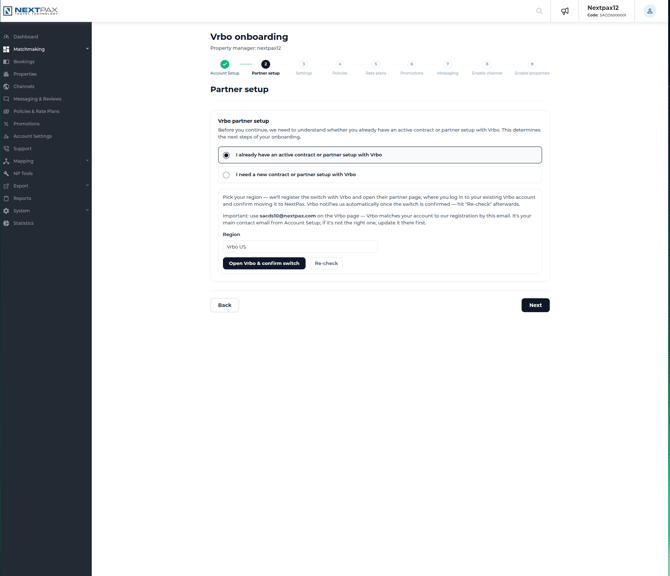
Both answers lead to the same three actions — pick your region, let NextPax register your details with Vrbo, and finish on Vrbo's partner page. Only the wording and what you do on the Vrbo page differ:
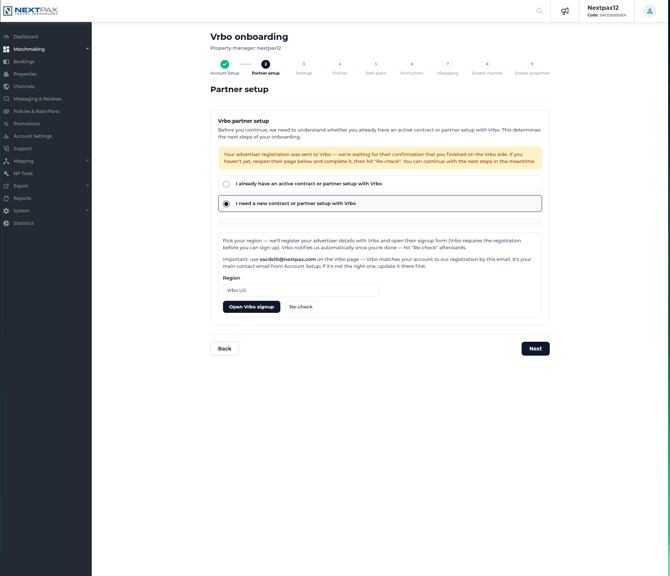
- New partner setup: "Pick your region — we'll register your advertiser details with Vrbo and open their signup form (Vrbo requires the registration before you can sign up). Vrbo notifies us automatically once you're done — hit "Re-check" afterwards." The button reads Open Vrbo signup.
- Existing partner setup: "Pick your region — we'll register the switch with Vrbo and open their partner page, where you log in to your existing Vrbo account and confirm moving it to NextPax. Vrbo notifies us automatically once the switch is confirmed — hit "Re-check" afterwards." The button reads Open Vrbo & confirm switch.
3.1 Pick your region
The Region dropdown lists Vrbo's regional sites (United States is the default). Pick the one where your Vrbo account lives — or, for a new account, where you want it.
3.2 ⭐ Use the right email
The step shows:
Important: use your main contact email on the Vrbo page — Vrbo matches your account to our registration by this email. It's your main contact email from Account Setup; if it's not the right one, update it there first.
Using a different email on the Vrbo page means Vrbo cannot match you to the registration and your connection will not be confirmed.
If your account has no main contact email yet, the step blocks the button and says: "Your account has no main contact email yet — Vrbo needs it to match your account to our registration. Please add it on the Account Setup step first."
3.3 Open the Vrbo page and finish there
Click the button. It briefly shows Registering…, then Vrbo's regional partner page opens in a new tab. If your browser blocked the new tab, use the link in the green note instead.
A green note confirms the registration, e.g. for a new setup: "Your advertiser details were registered with Vrbo — finish the signup on the page that just opened (use your main contact email), then hit "Re-check"." For an existing setup the note asks you to log in and confirm the switch instead. If your details were registered before, the note says "Your advertiser details were already registered with Vrbo" — that's fine, continue on the Vrbo page.
On the Vrbo page: sign up for a new account, or log in and confirm moving your existing account to NextPax — with your main contact email in both cases.
If registration fails, the step shows "We could not register your advertiser details with Vrbo" with the reason. Try again or contact NextPax support; the Vrbo page will not accept you without the registration.
3.4 Confirmation and Re-check
After registration the step shows a pending banner:
Your advertiser registration was sent to Vrbo — we're waiting for their confirmation that you finished on the Vrbo side. If you haven't yet, reopen their page below and complete it, then hit "Re-check". You can continue with the next steps in the meantime.
The step counts as complete at this point — it does not hold up the rest of your onboarding. The buttons stay available so you can reopen the Vrbo page or check again.
Vrbo notifies NextPax automatically once you finish on their page — usually within a few minutes. Click Re-check to refresh:
- Not confirmed yet: "No confirmation from Vrbo yet — it usually arrives within a few minutes of finishing on their page. If you haven't completed the Vrbo signup, reopen it above."
- Confirmed: "Looks like your Vrbo partner setup is already arranged. Review it below, or continue to the next step."
4. Channel Settings
Standard settings step — see the Generic partner guide §4. The one Vrbo difference: there are no credentials to type in — your account link is arranged in Partner Setup (§3). What remains are Vrbo's setting groups: booking, channel, content, general, payment and pricing.
5. Policy
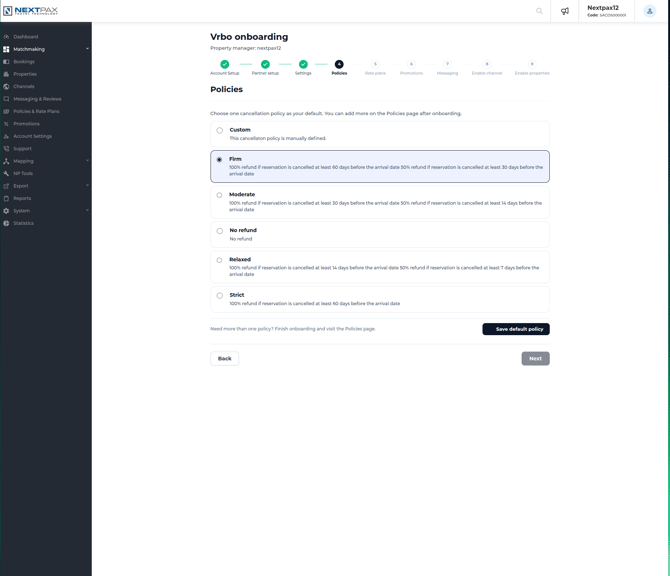
Vrbo works with a fixed catalogue of cancellation policies. In this step you pick one of them as your channel default:
- Relaxed
- Moderate
- Firm
- Strict
- No Refund
- Custom — your own cancellation rules instead of a fixed tier
6. Promotions
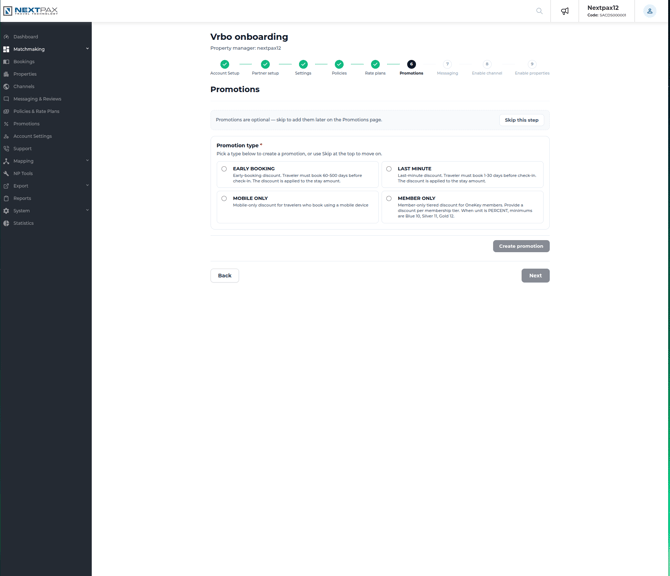
The step offers Vrbo's promotion types — pick and configure the ones you want to run, or click Skip this step: promotions are optional, and you can add or change them later on the Promotions page.
7. Other / Generic Steps
Account Setup, Rate Plans, Messaging, Enable channel and Enable properties work the standard way — see the Generic partner guide §7. One Vrbo particular: do Account Setup first, with the right email — your main contact email from Account Setup is the email Vrbo uses to match your account (§3.2); make sure it's correct before Partner Setup.